
New feature
Workspace and Agent Budgets
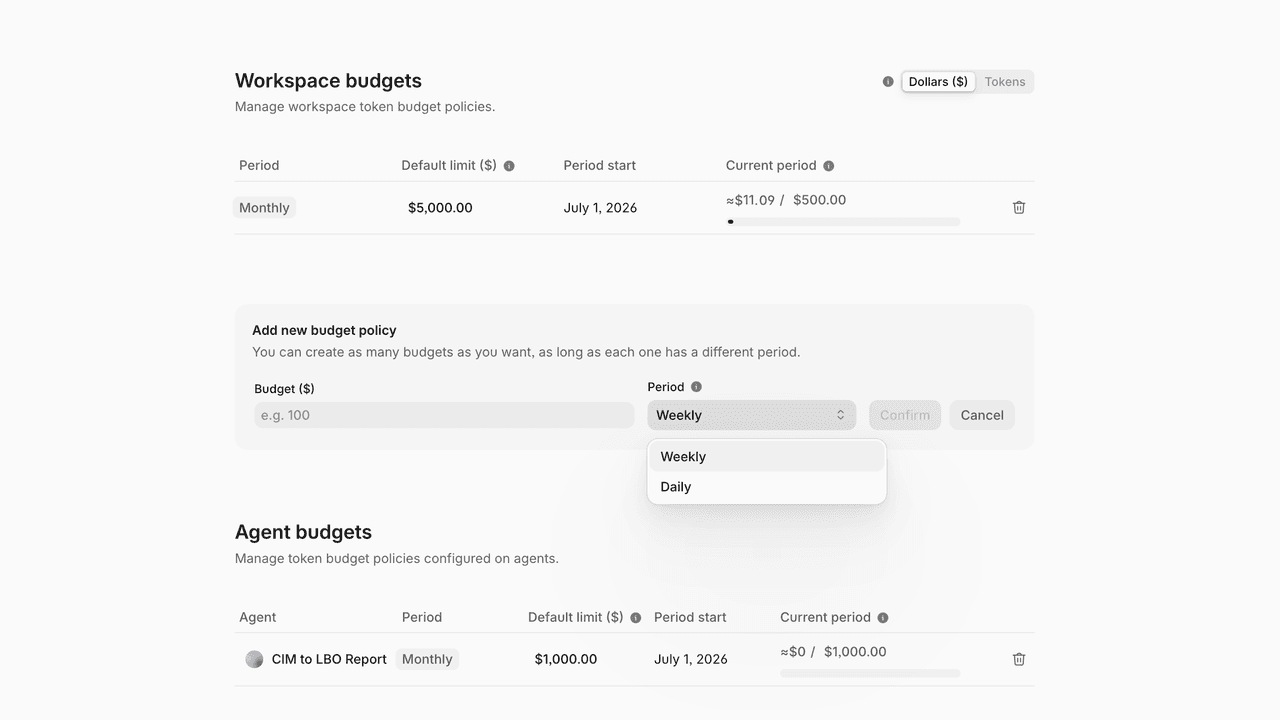
Budgets are now available to every workspace. Set spend limits on AI activity, watch consumption in real time, and stop runaway costs before they happen — all from Settings → Budgets.
Two levels of control
Workspace budgets cap total spend across all Go activity. Agent budgets set per-agent limits scoped to a specific workflow, each with its own live tracking — so one heavy agent can have a tighter leash than the rest.
Dollars or tokens
Every limit and progress bar can be viewed in dollars or in tokens. Dollars is usually the easier number to reason about — you set a cap of $5,000, not a count of tokens — but the token view is there when model consumption is what you care about.
Periods and overrides
Choose a reset cadence of daily, weekly, or monthly. Each period must be unique per policy, but you can stack several on the same agent — a daily and a weekly cap together, for layered protection. A default limit refreshes automatically each period; a current-period override adjusts spend just once, without changing the standing default.
Tracking and alerts
A live progress and a widget in each agent view show current spend, the limit, and the reset date at a glance. Email alerts fire automatically at 75%, 90%, and 100% of a budget, and full spend reporting lives in Reports.

Feature improvement
Chat Usage in Reports
Reports now go down to the level of a single chat. Alongside the existing agent and user views, you can see exactly what each conversation cost — in tokens and in dollars.
For any chat, you get its token spend and dollar value, a breakdown of which models were used, and whether any Go agents were triggered during the conversation. An expensive chat is no longer buried inside a workspace total — you can see which conversations are driving cost, and why.
Open Reports in the left navigation and select the Chats view. The functionality is available to workspace administrators.
New feature
Agent Memory
Agent memory lets you teach V7 Go how you like to work. Write your standing instructions once and Go carries them into every chat, so you stop re-explaining the same preferences at the top of each conversation.
It works like a set of house rules that sit behind your prompts. Anything that is true for most of your work belongs here: the register you write in, the way you want answers structured, the checks Go should run before it commits to an output, or the details it should always ask for.
Keep it short and specific. A handful of clear rules works better than a long wish list. Open Settings → Agent memory, write your guidance, and save.
Feature improvement
Run V7 Go From Your AI Assistant
V7 Go is now available as an MCP server. Connect it to Claude, ChatGPT, or any MCP-compatible assistant, and you can run Go straight from the chat window without switching back to the Go UI. This is the reverse of connecting tools into Go: here your assistant becomes a front end to Go itself.
What you can do from chat
Inspect and query workflows: pull rows and entities, run queries over workflow data, and read definitions to answer questions like “what did this run output?”
Run workflows: kick off Go runs from chat, including ones that take file inputs.
Build and edit workflows: add and update properties, including computed and agentic ones, configure views with filters and sorts, and set up triggers, all conversationally.
Query a Context Graph: ingest documents into a Context Graph and ask questions in natural language.
Connecting
You authenticate with your V7 Go login over OAuth when you connect. Each assistant configures MCP servers a little differently. In Claude, open Settings → Connectors → Add custom connector.
Endpoints
Pick the one that matches your account’s region:
EU / standard: https://mcp.go.v7labs.com
US: https://mcp.go.us.v7labs.com
Feature improvement
Chat with Your Knowledge Hubs
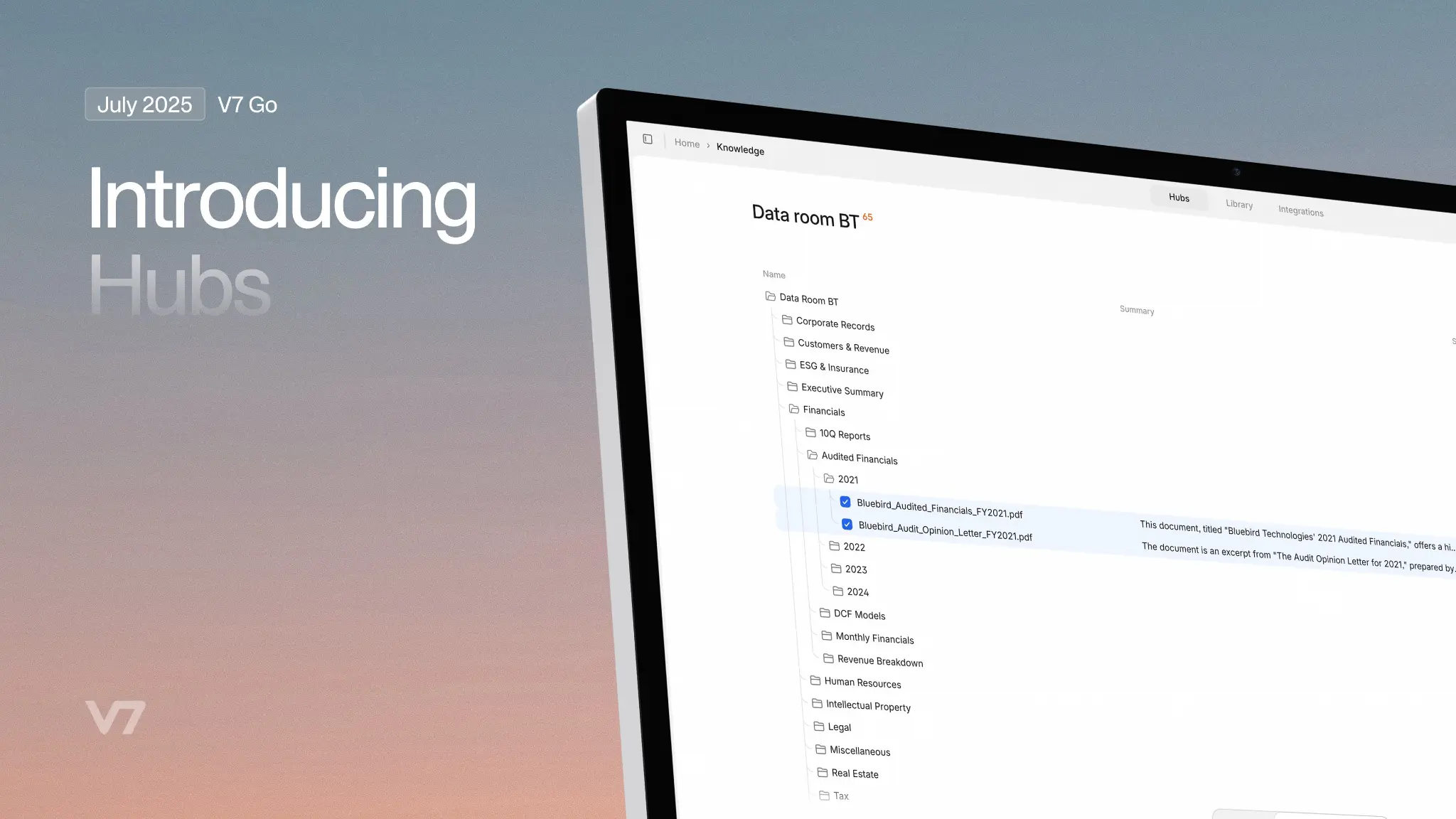
You can now open a chat window directly against any Hub and ask it anything — from a quick question to a prompt that spans every document in it.
When a Hub is created, V7 Go indexes every file in it. By the time you open the chat, the agent already understands what's there and can select the most relevant files for your specific question immediately. Send a complex prompt and you see the reasoning unfold in real time — which files it's drawing from, what it's extracting, and where it is in the task.
Chatting with Hubs is built primarily for the ad hoc questions that arise between defined workflows. When your team has a repeatable process, agentic workflows handle it. When an analyst needs a one-off deep-dive on a specific company, or a question comes up mid-review, this is what they reach for. Hubs are the first surface — expect the same contextual assistant to appear in other parts of the platform soon.
To access it, open any Hub and look for the chat panel on the right.

Feature improvement
Updated Granular Usage Reports
Usage reporting now includes a live dashboard — so you get a clear picture of how AI is being used across your workspace without exporting a CSV first.
The Reports section has two views. The Agents tab shows which workflows are running, which models they use, how many tokens each consumes, and what each costs over any date range. If one agent is doing the heavy lifting and three others are idle, that's visible the moment you open the page.
The Users tab shows individual engagement: fields edited, chats started, messages sent, corrections made, and last activity. It tells you not just whether people are logged in, but whether they're getting value from the platform.
CSV export in both Reports and Billing and Usage remains available for when you need it — bulk analysis, sharing with finance, or building your own views. The dashboard is for the daily question: how is AI actually being used, and by whom.
Go to Reports in the left navigation. Both tabs are available to workspace administrators by default.
New feature
MCP Integrations
V7 Go now supports MCP (Model Context Protocol) integrations. Your chats and agents can pull live context and functionality directly from the tools your team already uses.
The initial set includes HubSpot, Notion, Attio, Granola, Linear, and Slack. Once connected, the agent can search your CRM, pull meeting notes, create issues, query documents, and more.
Adding custom MCP servers
Beyond the built-in connectors, you can bring your own. Go to Integrations → MCP Connectors → + New to register any MCP-compatible server by URL. Once added, it appears in the Custom section and can be toggled on per conversation like any other connector.
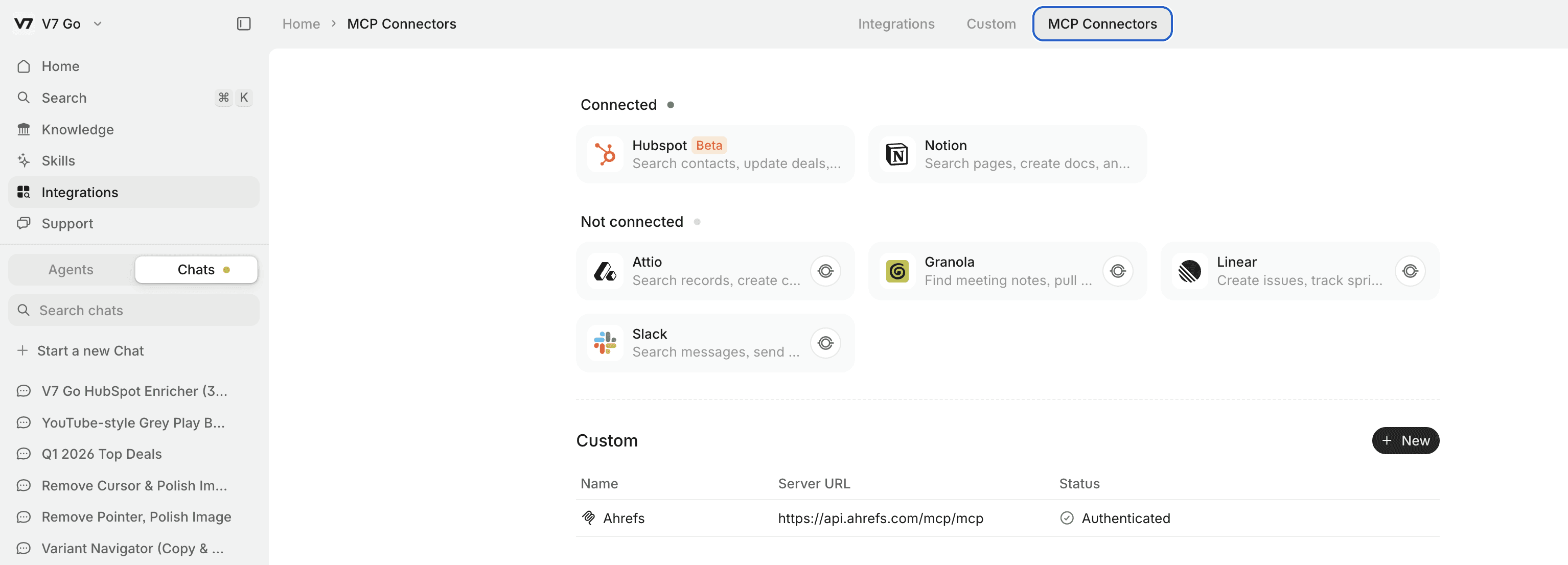
For additional setup instructions, see the MCP Connectors documentation.
Feature improvement
Spreadsheet Generation Skill
V7 Go can now generate fully formula-linked, multi-sheet spreadsheets. You can preview them as an interactive artifact and download the output as an Excel file. To use it, type / when writing your prompt and select the Spreadsheet Generator from the menu. From there, describe what you need and the agent handles the build.
The Spreadsheet skill is purpose-built for structured financial and analytical work. Give an agent a brief and it will produce a complete workbook: cover sheet, assumptions, income statement, DCF model, sensitivity analysis, comparables, and more. This functionality can be even more powerful when combined with specialized AI agents.
This is one of many skills available in V7 Go, with new ones added regularly. Press / in the homepage prompt box at any time to browse the full list.
Feature improvement
Edit slides in V7 Go [Alpha]
You can now edit slides directly in V7 Go.
Our slide generation skill already makes it possible to create complex presentations with charts, structured content, and polished layouts. Combined with AI agents for workflows like financial due diligence, it can generate things like investment decks in minutes.
But generation is only part of the workflow. Sometimes you want to fine-tune the output yourself.
Now you can choose between updating slides with prompts or editing them manually. Just switch from View to Edit mode to change text, update styling, and refine slides directly in the editor.
When you’re done, you can also export your presentation as a downloadable PPTX file.
New model
Gemini 3.1 Flash-Lite Now Available in V7 Go
You can now select Google's latest small model to run your agents at a fraction of the cost of larger models. It's noticeably faster than 2.5 Flash and priced at $0.25/1M input tokens and $1.50/1M output tokens.
It also comes with built-in thinking levels, letting you dial up reasoning depth when a task requires it, without paying for it when it doesn't.
Best for:
High-volume document processing and classification
Real-time content moderation and extraction
Workflows where speed and cost matter at scale
Gemini 3.1 Flash-Lite scores 86.9% on GPQA Diamond, a reasoning benchmark, which puts it ahead of some of Google's larger models from the previous generation.
New model
GPT-5.4 now available
V7 Go now supports GPT-5.4, OpenAI's latest model, available across all AI property configurations.
GPT-5.4 brings meaningful improvements over its predecessors, including stronger reasoning, better instruction-following, and more consistent output quality. Whether you're running research tasks, generating structured content, or processing complex documents, GPT-5.4 handles it with greater accuracy.
To start using it, open any AI property configuration menu, select Tool, and choose GPT-5.4 from the model list.
New model
Gemini 3.1 Flash-Lite Now Available in V7 Go
You can now select Google's latest small model to run your agents at a fraction of the cost of larger models. It's noticeably faster than 2.5 Flash and priced at $0.25/1M input tokens and $1.50/1M output tokens.
It also comes with built-in thinking levels, letting you dial up reasoning depth when a task requires it, without paying for it when it doesn't.
Best for:
High-volume document processing and classification
Real-time content moderation and extraction
Workflows where speed and cost matter at scale
Gemini 3.1 Flash-Lite scores 86.9% on GPQA Diamond, a reasoning benchmark, which puts it ahead of some of Google's larger models from the previous generation.
Feature improvement
Grounding Citations for Hubs
Citations in AI-generated responses now link directly to your Hub files. When an agent references a document from your Hub, you can click the citation to open the source file and see the exact text that supports each claim.
Previously, citations linked only to the primary entity. Now they connect to the specific Hub file used, whether that's an underwriting guide, policy document, or reference manual.
How it works
The agent generates a response with numbered citation tags
Click any citation to open the referenced Hub file
The interface highlights the exact passage used
This makes it simple to verify AI responses against your source documents and trace each claim back to its origin.
Feature improvement
New Featured Skills on the Home Screen
The updated V7 Go home screen now shows 12 featured skills grouped under three tabs — Discover, Analyze, and Review. Hover any skill to read what it does, click to start and try it out.
Discover:
News & Insights — track companies, people, and news
Contact Finder — find and enrich leads
Competitive Intel — map your competitive landscape
Account Prep — sales-ready company briefings
Analyze:
Excel Analyst — query spreadsheets in plain English
PDF Reader — extract answers from any document
Account Reconciliation — reconcile balances automatically
Journal Entry Prep — accrue, depreciate, book entries
Review:
Risk Assessment — score and prioritize risks
Privacy Compliance — GDPR & CCPA guidance on demand
NDA Screening — triage NDAs with risk classification
Contract Review — catch risks, suggest redlines
To browse all available skills or add your own, head to the Skills tab.
New feature
Time Triggers for Agents
You can now run agents automatically using Time Triggers. Set a recurring schedule or a fixed interval, and the agent runs without any manual input.
There are two ways to configure a Time Trigger:
Schedule: Run the agent on specific days and times, like every Tuesday and Thursday at 9AM.
Interval: Run the agent repeatedly at a fixed cadence, like every 30 minutes.
To set one up, open an agent and create a new Property. Select Trigger as the property type, then choose Time from the General Purpose section. From there, pick your mode and configure the timing.
New feature
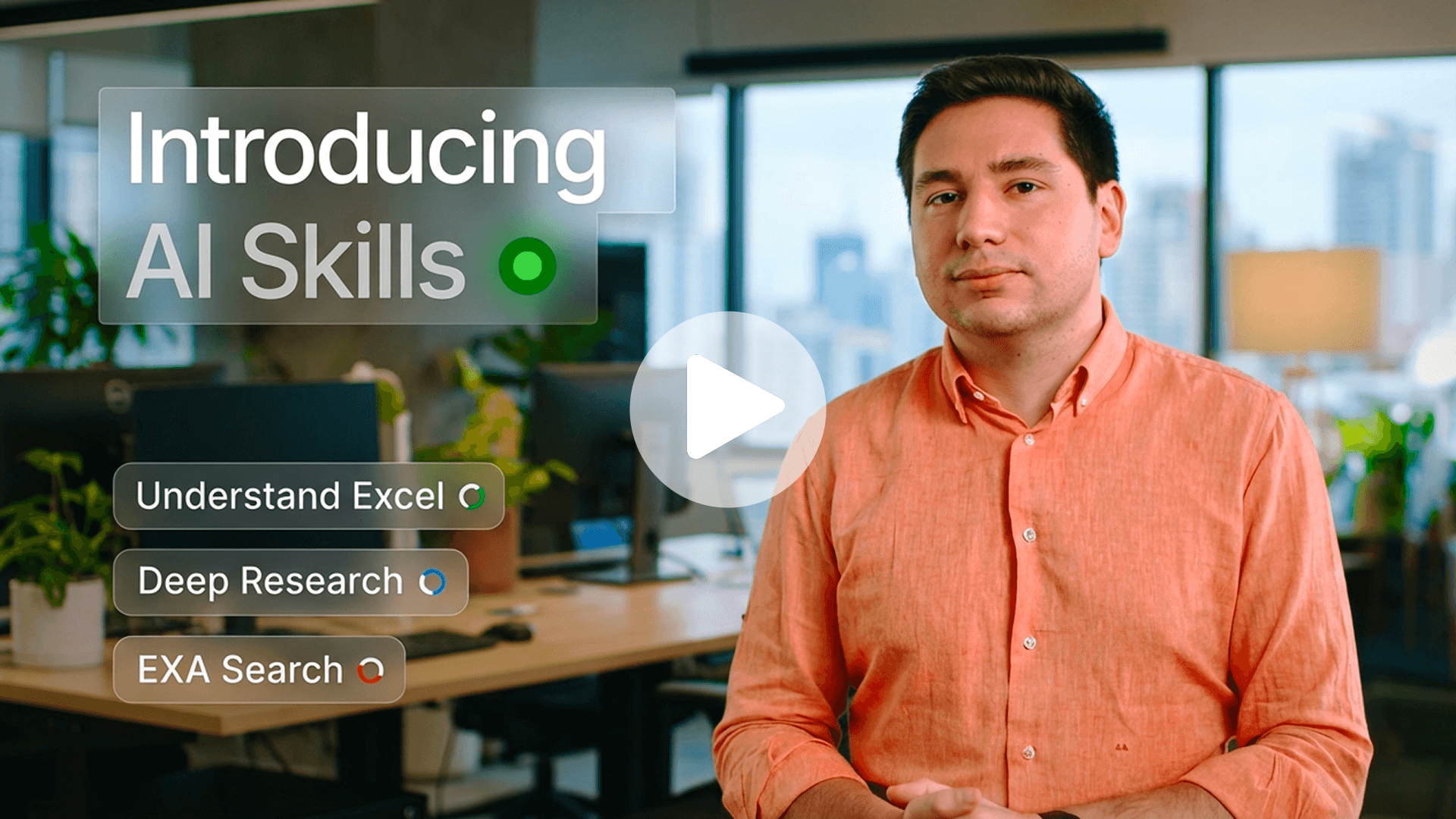
Introducing AI Skills in V7 Go
This week, we introduced AI Skills in V7 Go.
Your best operators carry something invaluable in their heads: the exact way important work gets done. How numbers get reconciled. How documents get reviewed. How requests get handled.
The problem? It doesn't scale, and most AI tools don't help.
Ask an AI to handle a complex task and you get a capable assistant that still needs constant direction. It can draft, summarize, and retrieve, but it doesn't know your process. It doesn't know which system to check first, which rules apply, or how your team connects the dots across Excel, your CRM, and five other tools. Every time, someone still has to fill that gap.
AI Skills are designed to close it. You define how a task should be done — the steps, rules, and tools involved — and V7 Go executes it consistently across your entire tech stack, every time.
No one-off prompts. No ad hoc automations. Just your best thinking, running at scale.
Curious how this could work for your team? We'd love to show you.

Load More