May 12, 2025
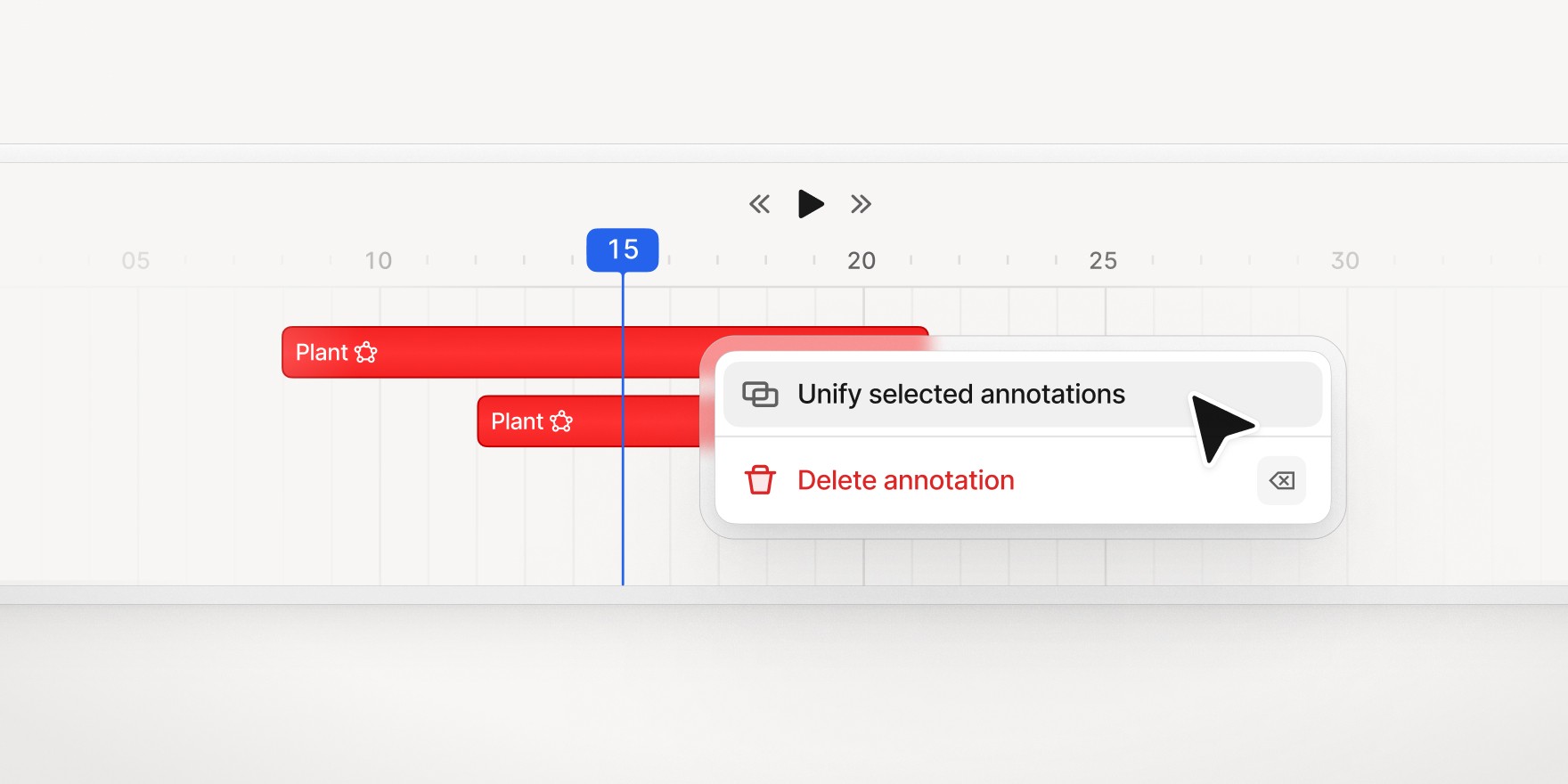
Correcting video annotations in V7 Darwin is now more straightforward with new Split and Unify functionalities. These tools help you divide a single annotation across frames or merge multiple annotations into one. It is especially useful for fixing model outputs (like Auto-Track) or for instance swaps.
To split an annotation, select it, then use the Scissors icon or the Ctrl + S hotkey. The annotation divides at the currently selected frame. All properties and the original instance ID are copied to both resulting annotations. The newly created segment gets a new annotation ID. This is helpful when an object was incorrectly tracked as a single instance.
To unify two annotations, Cmd + click to select them in the canvas or timeline. Then, right click and choose "Unify" or use the Ctrl + M hotkey. This merges them into a single annotation.
Learn more: Managing Annotations with Merge, Subtract, Split, and Unify Tools

Jade Yip
Senior Product Manager